Building a protocol
A protocol is the ordered list of exercises a patient works through on the tablet. This page walks through building one.
What a protocol is made of
Three levels, nested:
- Phases
The top level. A phase is a block of the session, in the order the patient meets it. Most protocols have one; use several when the session has distinct stages you want reported separately.
- Groups (optional)
A named bundle of exercises inside a phase. Use one when several exercises belong together, for example a battery that is always run as a set. A group is a convenience for you and for reporting; the patient still works through the exercises one after another.
- Exercises
The actual tasks. Each has a type (handwriting, barrage, reaction time, a questionnaire, and so on) and its own settings.
You can see all three nested in the editor. The protocol’s own title is at the top, then the phase, then a group, then an exercise inside it:
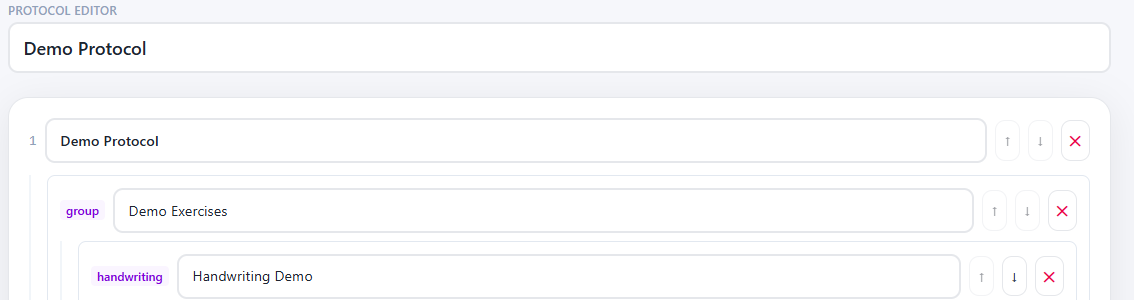
Everything is ordered, and order is what the patient sees.
Opening the editor
There are two ways in, depending on what you are building.
A template is a reusable protocol that belongs to no project. Build the protocol you want to run repeatedly here, then stamp it onto projects. Find these under Protocols in the sidebar.
A project’s protocol is the live copy a specific project’s patients work through. Open the project and stay on its Protocol tab. A project with no protocol yet offers two buttons:

New protocol starts from an empty one. From template copies an existing template in. Once the project does have a protocol, the same two buttons read Edit and Replace from template.
Choosing a template opens a picker:
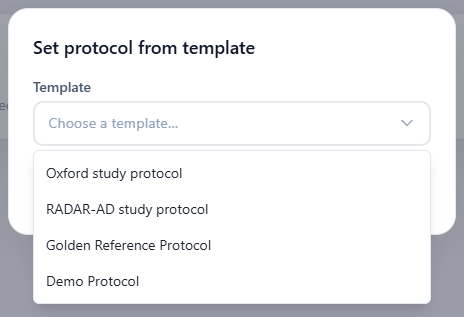
If the picker says Loading…, the template list is still being fetched. Give it a moment rather than assuming the library is empty.
Note
Applying a template replaces the project’s current protocol. Phases that already have recorded data are the exception: they are preserved. See Phases that lock.
Adding phases, groups and exercises
Give the protocol a title at the top. It needs one, as does every phase, group and exercise; the editor refuses to save otherwise and tells you which is missing.
Then:
+ Add phase, at the bottom of the page, appends a phase. Give it a title.
Inside a phase, choose a type from the dropdown, then press + Add exercise. + Add group next to it adds a group instead, and exercises then go inside that.

Use the ↑ and ↓ buttons on any row to reorder it, and ✕ to remove it.
Reordering and removing take effect when you save, not before.
Setting up an exercise
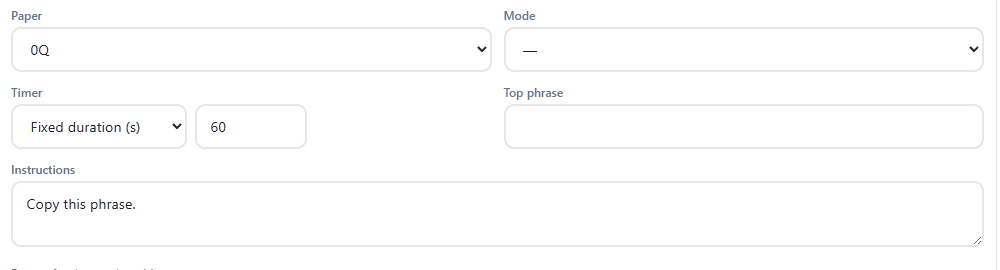
Each exercise shows only the settings its own type has, so the fields change as you pick different types. A handwriting exercise, for instance:
Some settings you will meet on most types:
- Timer
How the exercise ends: a fixed number of seconds, an upper limit the patient may finish early, or no timer at all. Which of these are offered depends on the exercise type.
- Instructions
What the patient reads before starting, with Pause after instructions as the number of seconds to hold that screen.
- Feedback enabled, Countdown enabled, Haptic feedback
Whether the tablet reacts as the patient works.
Type-specific settings sit alongside these: paper and mode for handwriting, wait times and response window for reaction time, the questionnaire itself for a questionnaire exercise, and so on.
Pictures
Some exercises show a picture: the sheet a barrage is performed on, the sheet and legend for a cipher, the stimuli in a recognition or attention task.
Those settings appear as a small thumbnail. Click it to open the asset library and pick from images that have already been uploaded:
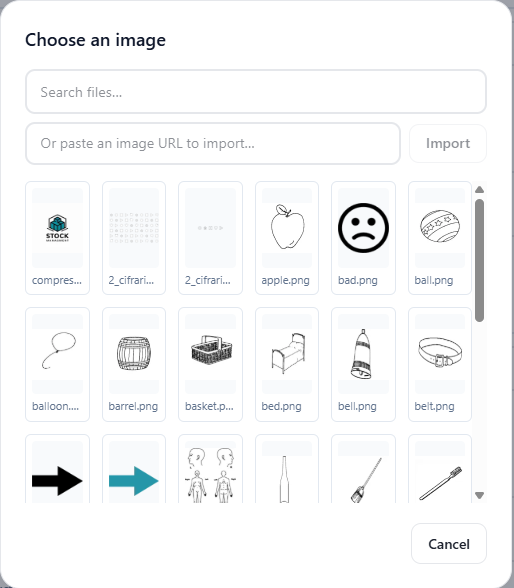
The thumbnail then shows what the exercise will display, with a small ✕ to clear it:

Clearing a picture puts the exercise back to the one it ships with.
Note
An exercise still using its built-in picture shows a broken thumbnail here. That is expected and does not mean anything is wrong: those files ship inside the tablet app rather than in the asset library, so the web app has nothing to preview. The exercise renders correctly on the tablet.
Warning
For barrage and cipher, the picture is not only decoration. The app works out what counts as a target by reading named shapes out of the drawing. A replacement sheet has to use the same shape names as the one it replaces, or the exercise will show fine and score nothing. If you need a new sheet, have it prepared for this rather than picking an arbitrary image.
Phases that lock
Once a patient has recorded data against a phase, that phase locks: its title and exercises turn read-only and it carries a locked badge.
This is deliberate. The results already collected are described by the phase as it was when they were recorded, so changing it after the fact would leave them describing something that no longer exists.
You can still add new phases, and edit any phase that has no data yet. If a protocol needs real change after collection has started, add to it rather than rewriting it.
If someone records data while you happen to be editing, saving fails with a message asking you to reload. Reload, then re-apply your changes to the phases that are still unlocked.
Saving
While you have unsaved changes, a bar sits at the bottom of the screen saying so:

- Save
Writes the protocol. On success the bar disappears and Saved. appears at the top.
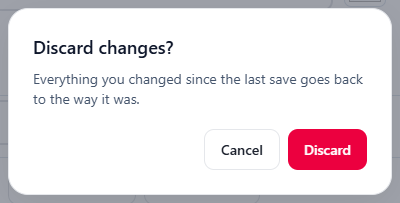
- Discard
Throws your changes away and puts the protocol back to the last saved version. It asks first, and it cannot be undone afterwards:
Nothing is written until you press Save, so leaving the page loses your changes.
If a save is rejected, the reason appears in that same bar and the editor scrolls the first problem into view:

Fix what it names and press Save again.